
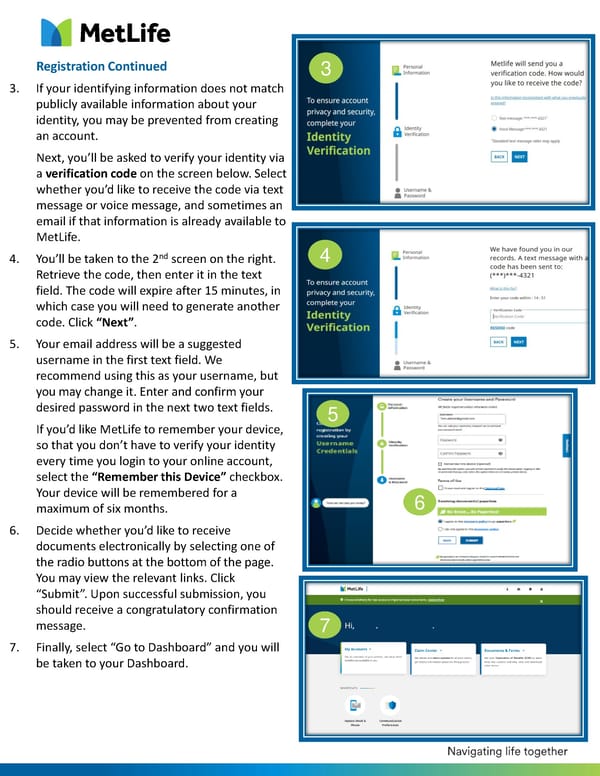
Registration Continued 3. If your identifying information does not match publicly available information about your identity, you may be prevented from creating an account. Next, you’ll be asked to verify your identity via a verification code on the screen below. Select whether you’d like to receive the code via text message or voice message, and sometimes an email if that information is already available to MetLife. 4. You’ll be taken to the 2nd screen on the right. Retrieve the code, then enter it in the text field. The code will expire after 15 minutes, in which case you will need to generate another code. Click “Next”. 5. Your email address will be a suggested username in the first text field. We recommend using this as your username, but you may change it. Enter and confirm your desired password in the next two text fields. If you’d like MetLife to remember your device, so that you don’t have to verify your identity every time you login to your online account, select the “Remember this Device” checkbox. Your device will be remembered for a maximum of six months. 6. Decide whether you’d like to receive documents electronically by selecting one of the radio buttons at the bottom of the page. You may view the relevant links. Click “Submit”. Upon successful submission, you should receive a congratulatory confirmation message. 7. Finally, select “Go to Dashboard” and you will be taken to your Dashboard. 3 4 5 6 7
 A Step-by-Step Guide to MyBenefits Registration Page 1