
A Step-by-Step Guide to MyBenefits Registration
This document provides detailed instructions for registering on MetLife's MyBenefits platform, including pre-registration and registration steps.
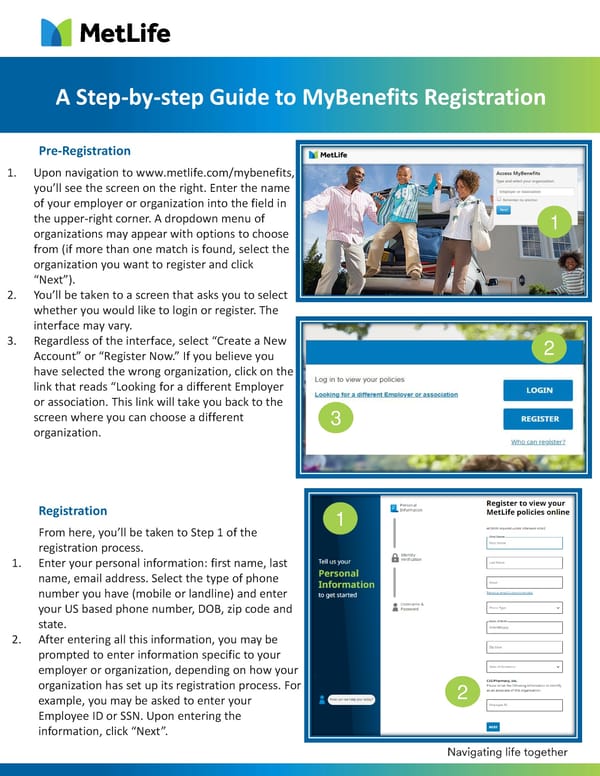
Pre-Registration 1. Upon navigation to www.metlife.com/mybenefits, you’ll see the screen on the right. Enter the name of your employer or organization into the field in the upper-right corner. A dropdown menu of organizations may appear with options to choose from (if more than one match is found, select the organization you want to register and click “Next”). 2. You’ll be taken to a screen that asks you to select whether you would like to login or register. The interface may vary. 3. Regardless of the interface, select “Create a New Account” or “Register Now.” If you believe you have selected the wrong organization, click on the link that reads “Looking for a different Employer or association. This link will take you back to the screen where you can choose a different organization. A Step-by-step Guide to MyBenefits Registration 1 2 Registration From here, you’ll be taken to Step 1 of the registration process. 1. Enter your personal information: first name, last name, email address. Select the type of phone number you have (mobile or landline) and enter your US based phone number, DOB, zip code and state. 2. After entering all this information, you may be prompted to enter information specific to your employer or organization, depending on how your organization has set up its registration process. For example, you may be asked to enter your Employee ID or SSN. Upon entering the information, click “Next”. 1 2 3
 A Step-by-Step Guide to MyBenefits Registration Page 2