
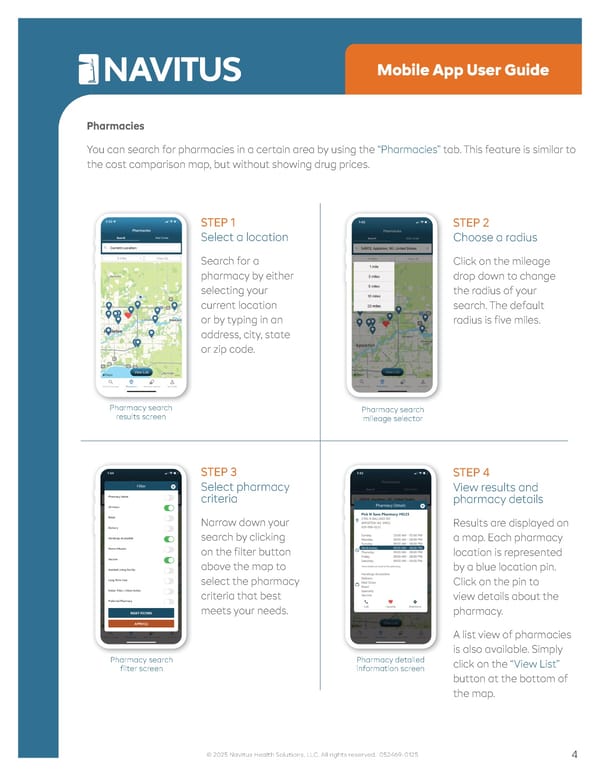
• Settings Mobile App User Guide Pharmacies You can search for pharmacies in a certain area by using the “Pharmacies” tab. This feature is similar to the cost comparison map, but without showing drug prices. Pharmacy search results screen STEP 1 Select a location Search for a pharmacy by either selecting your current location or by typing in an address, city, state or zip code. Pharmacy search mileage selector STEP 2 Choose a radius Click on the mileage drop down to change the radius of your search. The default radius is five miles. Pharmacy search filter screen STEP 3 Select pharmacy criteria Narrow down your search by clicking on the filter button above the map to select the pharmacy criteria that best meets your needs. Pharmacy detailed information screen STEP 4 View results and pharmacy details Results are displayed on a map. Each pharmacy location is represented by a blue location pin. Click on the pin to view details about the pharmacy. A list view of pharmacies is also available. Simply click on the “View List” button at the bottom of the map. 4 © 2025 Navitus Health Solutions, LLC. All rights reserved. 052469-0125
 Navitus Mobile App User Guide Page 3 Page 5